iphone 11 wifi option Greyed Out fix/iPhone 11 Wifi Not Turning On
Fix iPhone 11 Wifi Greyed Out/Not Turning On Issue
Fix iPhone 11 Wifi Greyed Out/Not Turning On Issue
Are you experiencing wifi issues on your iPhone 11? Is the wifi option greyed out or not turning on at all? Don’t worry; you’re not alone in this. Fortunately, there are a few simple things you can do to troubleshoot and fix this problem.
In this article, we’ll guide you through various troubleshooting methods to help you regain a seamless wifi connection on your device. From checking for software updates to resetting network settings and contacting Apple Support, we’ve got you covered. Let’s get started!
Key Takeaways
- Software updates can fix the iPhone 11 wifi option greyed issue
- Restarting your iPhone 11 may help resolve wifi issues
- Forgetting and reconnecting to wifi networks can clear up connection problems
- Disabling VPN or Proxy settings may help resolve wifi problems
- Reset All Settings can revert wifi settings to their default state, fixing any underlying wifi issues
Check for Software Updates
If you’re experiencing wifi connectivity issues with your iPhone 11, one of the first things you should do is check for any available software updates. Oftentimes, updates are released specifically to address bugs and improve wifi connectivity. Furthermore, having the latest version of iOS ensures that your device is receiving the most up-to-date security patches and features.
To check for software updates, go to “Settings,” then “General,” and finally, “Software Update.” If there is an update available, make sure to download and install it.
To ensure that your iPhone 11 stays up to date automatically, you can turn on Automatic Updates. Simply go to “Settings,” “General,” then “Software Update,” and toggle the “Automatic Updates” switch to the on position.
Regularly checking for updates and keeping your iPhone 11 updated is a crucial step in maintaining optimal wifi connectivity.
Restart Your iPhone 11
Sometimes, a restart can fix the wifi problem on your iPhone 11. Here are the steps:
- Press and hold the power button until the slider appears.
- Slide the slider to power off your device.
- Wait for a few seconds.
- Press and hold the power button again until the Apple logo appears to turn your iPhone back on.
If this doesn’t work, try the other troubleshooting steps below.
Toggle Airplane Mode On and Off
When experiencing wifi connectivity problems on your iPhone 11, one solution you can try is toggling Airplane Mode on and off. This action helps reset the wifi connection on your device, which can sometimes resolve the issue.
To toggle Airplane Mode on and off, swipe down from the top-right corner of the screen to access Control Center. Then, tap on the Airplane Mode icon to turn it on. Wait for a few seconds, and then tap the icon again to turn it off.
After turning off Airplane Mode, check if the wifi connectivity problem on your iPhone 11 has been resolved. If not, proceed to the next step.
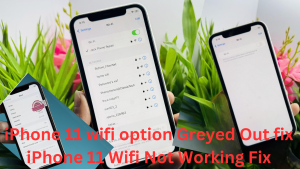
Forget and Reconnect to the Wi-Fi Network
If you are still facing iPhone 11 wifi issues, forgetting and reconnecting to the network can solve the problem. Follow these simple steps:
- Navigate to your iPhone’s Settings menu and tap on Wi-Fi.
- Locate the network you are currently connected to and tap on the (i) icon next to it.
- Tap on “Forget This Network” and confirm your selection.
- Reconnect to the network again by selecting it and entering the password.
Once you are reconnected, make sure to test your wifi connection by opening a web browser or any other app that requires internet access. If you are still experiencing issues, move on to the next step.
Reset Network Settings
If your iPhone 11 wifi is still not working after trying various methods, resetting network settings might help. This action will erase all saved wifi passwords and remove other network-related settings on your iPhone. However, it’s worth the shot if you want to fix the wifi connectivity problems.
Here’s how to reset network settings on your iPhone 11:
- Go to Settings.
- Tap on General.
- Scroll down to Reset.
- Select “Reset Network Settings”.
- Confirm your action.
After resetting network settings on your iPhone, you might have to reconnect to your wifi network and enter the password again. Check if your wifi is working correctly.
Resetting network settings is one of the viable options to fix the iPhone 11 wifi connection problem, but if the issue persists, don’t hesitate to contact Apple Support or an authorized service provider for further assistance.
Disable VPN or Proxy Settings
If you’re experiencing wifi connectivity problems on your iPhone 11, one potential solution is to disable any VPN or proxy settings that may be interfering with the connection. To do this, follow these simple steps:
- Go to your iPhone 11’s Settings.
- Tap on VPN or Proxy, depending on which one you have enabled.
- Switch off the respective option(s) to disable VPN or proxy settings.
It’s important to note that having a VPN or proxy enabled can prevent your iPhone 11 from connecting to wifi networks correctly. By following these steps, you may be able to resolve the issue and enjoy seamless internet access on your device.
Reset All Settings
If you’ve tried the previous fixes and still have wifi issues with your iPhone 11, resetting all settings might help. This process won’t delete your data, but it will revert all settings, including wifi, to their default state.
To reset all settings, go to Settings, tap on General, scroll down to Reset, and choose Reset All Settings.
Contact Apple Support
If you have followed all the troubleshooting steps and your iPhone 11 still has wifi issues, it’s best to contact Apple Support. They have technical experts who can give you specialized guidance and solutions that are tailored to your specific situation. You can reach out to them through phone or email support, or you can schedule an appointment with an Apple Authorized Service Provider if required.
Remember to keep your device and personal details ready when contacting Apple Support. This will help them provide you with a faster and more accurate solution to your iPhone 11 wifi woes. Rest assured, they will do their best to help you and resolve your issue as promptly as possible.
Third-Party Repair Options
If your iPhone 11 is experiencing wifi problems that are caused by hardware issues, you may need professional repair services from authorized service providers or Apple Stores. These repair centers offer quality, reliable, and prompt solutions to fix any hardware-related problems that may be affecting the wifi functionality on your iPhone 11.
| Service Provider | Description |
|---|---|
| Apple Stores | Apple Stores offer excellent technical support services for wifi connectivity issues on your iPhone 11. They provide high-quality and authorized repair services that are backed by a warranty. |
| Authorized Service Providers | Authorized service providers are independent companies authorized by Apple to offer repair services for Apple products. They are equipped with the necessary tools and expertise to handle any hardware issues that may be impacting your iPhone 11’s wifi connectivity. |
Explore these options if your iPhone 11 is still under warranty or if you have AppleCare+ for additional support.
By seeking a repair service from authorized providers, you can get a quick resolution to your iPhone 11’s wifi problems while safeguarding the device’s quality, reliability, and performance.
Conclusion
Don’t let wifi connectivity issues ruin your experience on the iPhone 11. With these troubleshooting steps, you can quickly fix the problem and enjoy an uninterrupted wifi connection on your device. Remember to check for software updates, restart your iPhone, toggle Airplane Mode, forget and reconnect to wifi networks, reset network settings, disable VPN or proxy settings, or reset all settings if necessary. If all else fails, Apple Support or an authorized service provider is always ready to assist you. So, don’t hesitate to seek technical assistance if the issue persists.
By following these simple tips, you can restore your device to normal functioning and enjoy the benefits of being connected to the internet. So, stay connected and explore the endless possibilities of your iPhone 11.
FAQ
How do I fix the iPhone 11 wifi option being greyed out?
To fix the issue of your iPhone 11 wifi option being greyed out, you can try the following steps:
1. Check for software updates and ensure your device is running on the latest version of iOS.
2. Restart your iPhone 11 by pressing and holding the power button until the slider appears, then slide it to power off. Press and hold the power button again to turn it back on after a few seconds.
3. Toggle Airplane Mode on and off by swiping down from the top-right corner of the screen and tapping on the Airplane Mode icon in Control Center.
4. Forget the wifi network and reconnect to it by going to Settings, selecting Wi-Fi, tapping on the (i) icon next to the network, and choosing “Forget This Network.” Then, reconnect to the network and enter the password.
5. Reset network settings by going to Settings, tapping on General, selecting Reset, and choosing “Reset Network Settings.”
6. Disable any VPN or proxy settings by going to Settings, tapping on VPN or Proxy, and turning off the respective options.
7. If all else fails, contact Apple Support for further assistance or explore authorized service providers for professional repair options.
How can I check for software updates on my iPhone 11?
To check for software updates on your iPhone 11, follow these steps:
1. Ensure your device is connected to a stable wifi network.
2. Go to Settings on your home screen.
3. Scroll down and tap on General.
4. Select Software Update.
5. If a software update is available, tap on “Download and Install.”
6. Enter your passcode, if prompted.
7. Follow the on-screen instructions to complete the software update process.
Note: It’s recommended to back up your device before performing a software update to avoid any potential data loss.
How do I restart my iPhone 11?
To restart your iPhone 11, please follow these steps:
1. Press and hold the power button located on the right side (or top) of your device.
2. Wait for the slider to appear on the screen.
3. Drag the slider from left to right to power off your device.
4. Once your iPhone 11 is turned off, press and hold the power button again until the Apple logo appears on the screen.
5. Release the power button and wait for your device to restart.
Your iPhone 11 should now be restarted and ready to use.
How can I toggle Airplane Mode on and off on my iPhone 11?
To toggle Airplane Mode on and off on your iPhone 11, follow these steps:
1. Swipe down from the top-right corner of the screen to access Control Center.
2. Tap on the Airplane Mode icon, which looks like an airplane.
3. Wait for a few seconds, then tap the icon again to turn off Airplane Mode.
4. Once Airplane Mode is turned off, your wifi connection should be restored.
Note: When Airplane Mode is enabled, all wireless connections on your device, including wifi and cellular data, will be turned off.
How can I forget and reconnect to a wifi network on my iPhone 11?
To forget and reconnect to a wifi network on your iPhone 11, follow these steps:
1. Go to Settings on your home screen.
2. Select Wi-Fi.
3. Find the wifi network that you want to forget and tap on the (i) icon next to it.
4. Tap on “Forget This Network” and confirm.
5. Afterward, reconnect to the network by selecting it again from the list of available networks.
6. Enter the password for the network, if prompted.
Your iPhone 11 should now be connected to the wifi network again.
How do I reset the network settings on my iPhone 11?
To reset network settings on your iPhone 11, follow these steps:
1. Go to Settings on your home screen.
2. Select General.
3. Scroll down and tap on Reset.
4. Choose “Reset Network Settings” from the list of options.
5. Enter your passcode, if prompted.
6. Confirm the action by tapping on “Reset Network Settings” again.
Once the network settings are reset, your iPhone 11 will restart, and all saved wifi passwords and other network-related settings will be removed.
Note: You may need to reconnect to wifi networks and reconfigure any network settings after the reset.
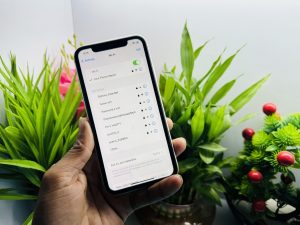
How can I disable VPN or proxy settings on my iPhone 11?
To disable VPN or proxy settings on your iPhone 11, follow these steps:
1. Go to Settings on your home screen.
2. Tap on VPN or Proxy, depending on which one is enabled.
3. Turn off the respective option by toggling the switch to the off position.
4. Once disabled, the VPN or proxy will no longer interfere with your wifi connection on the iPhone 11.
Note: The steps may vary if you are using a third-party VPN or proxy app. Consult the app’s instructions for disabling the service.
How do I reset all settings on my iPhone 11?
To reset all settings on your iPhone 11, follow these steps:
1. Go to Settings on your home screen.
2. Select General.
3. Scroll down and tap on Reset.
4. Choose “Reset All Settings” from the list of options.
5. Enter your passcode, if prompted.
6. Confirm the action by tapping on “Reset All Settings” again.
Once the reset is complete, your iPhone 11 will restart, and all settings, including wifi settings, will be reverted to their default state.
Note: Resetting all settings will not erase any of your data, apps, or media files.
What should I do if the wifi issue on my iPhone 11 persists after trying all the troubleshooting steps?
If the wifi issue on your iPhone 11 persists after trying all the troubleshooting steps mentioned, it is recommended to contact Apple Support for further assistance. Their technical experts can provide specialized guidance and solutions tailored to your specific situation. Alternatively, you can explore authorized service providers or Apple Stores for professional repair options if your iPhone 11 is still under warranty or covered by AppleCare+.