How To Fix iPhone 13 Pro Max White Screen Problem Jumper Solution/White Screen Problem Fix
Fix: iPhone 13 Pro Max White Screen Issue
Introduction
In recent times, the iPhone 13 Pro Max has garnered widespread acclaim for its advanced features and sleek design. However, like any electronic device, it is not immune to issues. One prevalent problem that users may encounter is the iPhone 13 Pro Max white screen problem. This perplexing issue can disrupt your usage experience and leave you searching for solutions. In this comprehensive guide, we delve into the causes of the iPhone 13 Pro Max white screen problem and provide effective solutions to resolve it.
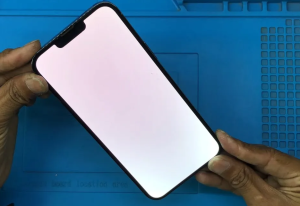
Fix: iPhone 13 Pro Max White Screen Issue
Is your iPhone 13 Pro Max displaying a persistent white screen? Don’t worry, we’ve got you covered! In this article, we will provide you with a comprehensive guide on how to fix the white screen problem on your iPhone 13 Pro Max. We will walk you through the jumper solution, offering step-by-step instructions to help you resolve this issue and regain full functionality of your device.
Key Takeaways:
- Learn how to fix the white screen problem on your iPhone 13 Pro Max
- Follow the jumper solution to resolve the issue
- Ensure you have the necessary tools for the fix
- Step-by-step guide with illustrations for easy understanding
- Explore alternative solutions and troubleshooting tips
Understanding the iPhone 13 Pro Max White Screen Problem
Welcome to the second section of our comprehensive guide on fixing the iPhone 13 Pro Max white screen problem. In this section, we will delve into the details of this frustrating issue, including its causes, potential triggers, and how it affects the overall functionality of your device.
Causes of the iPhone 13 Pro Max White Screen Problem
The iPhone 13 Pro Max white screen problem can be attributed to various factors, both hardware and software-related. Let’s explore some of the common causes:
- Software glitches: Corrupted software or incompatible apps can lead to the white screen issue.
- Physical damage: If your device has experienced a drop or impact, it can result in display-related problems, including a white screen.
- Hardware issues: Faulty display connectors or damaged LCD panels may cause the white screen problem.
Potential Triggers
Certain actions or events can trigger the white screen problem on your iPhone 13 Pro Max. It’s essential to be aware of these potential triggers, which include:
- Operating system updates: Installing an iOS update might sometimes conflict with existing software, leading to display issues.
- App updates: Incompatible app updates can also contribute to the white screen problem.
- Physical trauma: Any impact or damage to your iPhone 13 Pro Max can initiate the white screen issue.
Effects on Device Functionality
The iPhone 13 Pro Max white screen problem can severely impact the functionality of your device. When faced with a white screen, you may encounter the following issues:
- Inability to access the home screen or launch any apps.
- Lack of visibility, making it difficult to navigate or use the device.
- Complete device freeze or unresponsiveness.
Now that we have a better understanding of the causes, triggers, and effects of the iPhone 13 Pro Max white screen problem, let’s move on to the next section, which will guide you through the diagnostic process to confirm if your device is indeed facing this issue.
Diagnosing the White Screen Problem
When encountering a white screen problem on your iPhone 13 Pro Max, it is crucial to diagnose the issue accurately before proceeding with any troubleshooting steps. This section will guide you through the diagnostic process to determine whether your device is indeed experiencing a white screen problem and not another issue. Follow these troubleshooting steps to confirm the problem:
Step 1: Forced Restart
Perform a forced restart on your iPhone 13 Pro Max by pressing and holding the Volume Up button and the Side button simultaneously until the Apple logo appears. If the white screen persists after the restart, proceed to the next step.
Step 2: Connect to a Computer
Connect your iPhone 13 Pro Max to a computer using a Lightning cable and open iTunes or Finder (for macOS Catalina and later versions). If your device appears in iTunes or Finder, this indicates that it is recognized and communicating with the computer, suggesting that the issue may be related to the display itself.
Step 3: External Display Test
Try connecting your iPhone 13 Pro Max to an external display using an HDMI adapter. If you can see the display on the external monitor while the white screen persists on your device, it provides further evidence of a display-related problem.
Step 4: Safe Mode
Put your iPhone 13 Pro Max into Safe Mode by holding the Side button and releasing it when the slide to power off slider appears. Then, press and hold the Volume Down button until the device finishes booting up. If the white screen disappears in Safe Mode, it suggests that a third-party app may be causing the issue.
By following these diagnostic steps, you can pinpoint whether your iPhone 13 Pro Max is indeed facing a white screen problem. Once you have confirmed the problem, proceed to the next sections to explore the possible causes and solutions.
“Diagnosing the white screen problem accurately is essential to find the appropriate solution and resolve the issue effectively.”
| Diagnostic Steps | Outcome |
|---|---|
| Forced Restart | White screen persists |
| Connect to a Computer | Device recognized in iTunes or Finder |
| External Display Test | White screen on device, normal display on external monitor |
| Safe Mode | White screen disappears |
Common Reasons for iPhone 13 Pro Max White Screen Problem
Understanding the underlying causes of the iPhone 13 Pro Max white screen problem is crucial in resolving this issue. Let’s explore the common hardware and software factors that can contribute to this frustrating problem.
Hardware Causes
1. Faulty Display Connector: A loose or damaged connection between the display and the device can lead to a white screen problem. This can occur due to physical damage or wear and tear over time.
2. Malfunctioning Display: A defective or malfunctioning display panel can result in the white screen issue. This can be caused by manufacturing defects, impact damage, or aging of the display component.
Software Causes
1. Software Glitches: Software bugs or glitches within the operating system or specific applications can trigger the white screen problem. These issues may arise due to incomplete updates, incompatible software, or corrupted data.
2. iOS Compatibility Issues: In some cases, certain iOS versions may not be fully compatible with the hardware of the iPhone 13 Pro Max, leading to display-related problems such as the white screen issue.
It is essential to identify the specific cause of the white screen problem on your iPhone 13 Pro Max before proceeding with any troubleshooting or repair methods.
Common Causes of iPhone 13 Pro Max White Screen Problem
| Hardware Causes | Software Causes |
|---|---|
| – Faulty Display Connector | – Software Glitches |
| – Malfunctioning Display | – iOS Compatibility Issues |
Identifying the root cause will enable you to choose the most appropriate solution to fix the white screen problem on your iPhone 13 Pro Max. In the next sections, we will provide detailed guidance on diagnosing and resolving this issue.
Jumper Solution for iPhone 13 Pro Max White Screen Problem
If you’re facing the frustrating issue of a white screen on your iPhone 13 Pro Max, don’t worry! We have a jumper solution that can effectively resolve this problem. But first, let’s understand what a jumper is and how it can fix the white screen problem.
What is a Jumper?
A jumper is a tiny component that can be used to bridge a connection between two points on a circuit board. In the case of the iPhone 13 Pro Max white screen problem, a faulty connection may be causing the issue. By performing a jumper solution, you can establish a new connection and restore your device’s functionality.
Performing the Jumper Solution
To perform the jumper solution for the iPhone 13 Pro Max white screen problem, follow these steps:
- Ensure your iPhone is turned off and disconnected from any power source.
- Open the device using the appropriate tools.
- Carefully locate the specific connection point or components that need to be bridged. Refer to a detailed guide or seek professional help if needed.
- Use a fine-tipped soldering iron and solder to create a bridge between the identified points. Take caution not to damage any surrounding components.
- Once the bridge is established, let the solder cool down and solidify.
- Reassemble your iPhone 13 Pro Max and turn it on to check if the white screen problem has been resolved.
It’s crucial to approach the jumper solution with caution and, if you’re not confident in your skills, consider seeking assistance from a professional technician. Remember to follow safety guidelines and use appropriate tools to ensure a successful outcome.
| Tools Required | Function |
|---|---|
| Soldering iron | To create a bridge between connection points. |
| Solder | To form a solid connection between bridge points. |
| iPhone opening tools | To safely open the device and access internal components. |
By successfully performing the jumper solution, you can fix the white screen problem on your iPhone 13 Pro Max and regain full functionality of your device. However, if you’re not comfortable with attempting the jumper solution or if it doesn’t resolve the issue, consider exploring alternative solutions or seeking professional assistance.
Necessary Tools for iPhone 13 Pro Max White Screen Problem Jumper Solution
When it comes to fixing the white screen problem on your iPhone 13 Pro Max, having the right tools is essential. These tools will facilitate the jumper solution process and enable you to resolve the issue effectively. Here’s a list of the necessary tools you will need:
- Opening tool: The opening tool is used to carefully pry open the iPhone’s casing without causing any damage. It helps gain access to the internal components.
- Screwdriver set: A precision screwdriver set is crucial for removing the screws securing the iPhone’s display and other components. It ensures accurate and safe disassembly.
- Anti-static wrist strap: An anti-static wrist strap helps protect your iPhone from electrostatic discharge during the repair process. It prevents any damage caused by static electricity.
- Microfiber cloth: A microfiber cloth is useful for wiping and cleaning the iPhone’s screen and other surfaces. It ensures a smudge-free and clear display once the repair is complete.
- Adhesive strips: Adhesive strips are necessary for reattaching the iPhone’s display to the frame securely. They provide a strong bond and prevent any display-related issues.
- Heat gun or hairdryer: A heat gun or hairdryer is used to soften the adhesive that holds the iPhone’s display in place. This makes it easier to remove the display without causing any damage.
- Tweezers: Tweezers help in handling small components and connectors during the repair process. They provide precision and ease when working with delicate parts.
- Flex cable connectors: Flex cable connectors are used to establish secure connections between the iPhone’s internal components. They ensure proper functionality once the repair is complete.
By having these tools at your disposal, you will be well-equipped to perform the jumper solution for the iPhone 13 Pro Max white screen problem. Remember to follow the instructions carefully and take necessary precautions to ensure a successful repair.
Step-by-Step Guide: How To Fix iPhone 13 Pro Max White Screen Problem
Facing the frustrating issue of a white screen on your iPhone 13 Pro Max? Don’t worry, we’ve got you covered! In this step-by-step guide, we will walk you through the process of fixing the white screen problem on your device. Follow these instructions carefully, and you’ll have your iPhone 13 Pro Max back to normal in no time.
Before You Begin
Before diving into the troubleshooting steps, ensure that your iPhone 13 Pro Max is fully charged and connected to a stable Wi-Fi network. Additionally, make sure you have the required tools handy, including a screwdriver set, a spudger, and a heat gun or hairdryer.
Step 1: Power Off Your iPhone 13 Pro Max
The first step is to power off your device. To do this, press and hold the Power button on the side of your iPhone 13 Pro Max until the Power Off slider appears on the screen. Slide it from left to right to turn off your device.
Step 2: Remove the Screws at the Bottom
Using a screwdriver, carefully remove the two screws located at the bottom of your iPhone 13 Pro Max. Set the screws aside in a safe place.
Step 3: Use Heat to Loosen the Display
Apply heat to the edges of your iPhone 13 Pro Max’s display using a heat gun or hairdryer. Ensure that you keep the heat source moving and maintain a safe distance from the device to prevent overheating. Heat the display for about 2-3 minutes until it becomes slightly warm to the touch.
Step 4: Separate the Display Assembly
Once the display is warmed up, use a spudger or a thin plastic card to gently separate the display assembly from the rear case. Start from the bottom edge and carefully work your way around the device, gradually lifting the display assembly.
Step 5: Disconnect and Reconnect the Display Cables
Locate the display cables that connect the display assembly to the iPhone’s logic board. Using a spudger, carefully disconnect these cables by gently prying them up. After a few seconds, reconnect the cables securely to ensure a proper connection.
Step 6: Test Your iPhone 13 Pro Max
Now that you have reconnected the display cables, it’s time to test your device. Press and hold the Power button until the Apple logo appears on the screen. If the white screen problem persists, proceed to the next step.
Step 7: Perform a Hard Reset
If the white screen problem still persists, perform a hard reset on your iPhone 13 Pro Max. Press and hold the Power button and the Volume Down button simultaneously until the Apple logo appears. Release the buttons and wait for your device to restart.
Step 8: Seek Professional Assistance
If none of the above steps resolved the white screen problem on your iPhone 13 Pro Max, it is recommended to seek professional assistance. Visit an authorized Apple service center or contact Apple Support for further guidance and possible repairs.
By following these step-by-step instructions, you can effectively fix the white screen problem on your iPhone 13 Pro Max. Remember to exercise caution throughout the process and seek professional help if needed. Your iPhone will soon be back to its optimal performance, ready to serve you seamlessly.
Additional Tips for Troubleshooting iPhone 13 Pro Max White Screen Problem
If you encounter any difficulties while attempting the jumper solution to fix the white screen problem on your iPhone 13 Pro Max, don’t worry. We have some additional troubleshooting tips that can help you overcome challenges and successfully resolve the issue.
1. Restart Your iPhone
An effective first step is to restart your iPhone. This simple action can refresh the device’s system and potentially resolve minor software glitches causing the white screen problem. Press and hold the power button until the “Slide to power off” option appears, then slide to turn off your device. After a few seconds, press and hold the power button again until the Apple logo appears. Your iPhone will now restart.
2. Update Your Software
Software updates often include bug fixes and performance improvements that can address known issues, such as the white screen problem. Make sure your iPhone 13 Pro Max is running the latest iOS version by going to Settings > General > Software Update. If an update is available, tap “Download and Install” to update your device.
3. Reset All Settings
If the problem persists, you can try resetting all settings on your iPhone. This action will not erase your data but will revert all settings to their default state. To do this, go to Settings > General > Reset > Reset All Settings. Enter your passcode if prompted and confirm the reset. Keep in mind that you will need to reconfigure your settings after the reset.
4. Restore Your iPhone
If none of the previous steps have resolved the white screen problem, you may need to restore your iPhone. Before proceeding, ensure you have a recent backup of your data. Connect your iPhone to a computer with the latest version of iTunes or Finder. Follow the on-screen instructions to initiate the restore process. This will erase all data on your device, so it’s crucial to have a backup.
“Remember to take precautions before attempting advanced troubleshooting methods. If you’re unsure or uncomfortable with the process, it’s always wise to consult a professional or reach out to Apple support for assistance.”
By following these additional troubleshooting tips, you can enhance your chances of successfully resolving the white screen problem on your iPhone 13 Pro Max. Remember to stay calm, be patient, and approach the troubleshooting process systematically. With perseverance, you’ll be back to enjoying your fully functional device in no time.
| Troubleshooting Tips | Benefits |
|---|---|
| Restart your iPhone | Refreshes the system and resolves minor software glitches |
| Update your software | Addresses known issues through bug fixes and improvements |
| Reset all settings | Reverts all settings to default state, potentially resolving the problem |
| Restore your iPhone | Provides a clean slate by erasing all data and restoring the device |
Precautions and Safety Measures
Before attempting to fix the white screen problem on your iPhone 13 Pro Max, it is crucial to prioritize safety and take necessary precautions. By following these measures, you can ensure the well-being of yourself and your device.
1. Familiarize Yourself with Safety Guidelines
Start by familiarizing yourself with Apple’s safety guidelines for handling electronic devices. Understand the potential risks involved and the precautions recommended by the manufacturer.
2. Turn Off and Disconnect Your Device
Prior to any repairs or troubleshooting, turn off your iPhone 13 Pro Max and disconnect it from any power sources. This will minimize the risk of electrical shocks or short circuits during the process.
3. Create a Safe Workspace
Prepare a clean and well-lit workspace with enough room for you to comfortably work on your device. Ensure the area is free from any liquids that could potentially damage your iPhone.
4. Use Proper Tools and Equipment
Make sure you have the appropriate tools and equipment for the repair process. Using the wrong tools can lead to further damage and safety hazards. Refer to the manufacturer’s recommendations or consult trusted resources for guidance.
5. Protect Your Eyes and Hands
Wear safety glasses or goggles to protect your eyes from any foreign objects or debris that may arise during the repair. Additionally, wearing anti-static gloves can help prevent electrostatic discharge and safeguard both you and your device.
6. Work in a Well-Ventilated Area
Perform the repairs in a well-ventilated area to prevent the buildup of potentially harmful fumes or chemicals. Proper air circulation is essential for your safety and to avoid any inhalation concerns.
7. Take Your Time and Be Patient
Rushing through the repair process can lead to mistakes or accidents. Take your time, follow the instructions carefully, and remain patient throughout the entire process. It’s better to proceed slowly and avoid further complications.
By adhering to these safety measures, you can confidently address the white screen problem on your iPhone 13 Pro Max while prioritizing your well-being and protecting your device.
| Precautions and Safety Measures |
|---|
| Familiarize Yourself with Safety Guidelines |
| Turn Off and Disconnect Your Device |
| Create a Safe Workspace |
| Use Proper Tools and Equipment |
| Protect Your Eyes and Hands |
| Work in a Well-Ventilated Area |
| Take Your Time and Be Patient |
Alternative Solutions for iPhone 13 Pro Max White Screen Problem
If the jumper solution mentioned earlier does not resolve the white screen problem on your iPhone 13 Pro Max, don’t worry. There are alternative solutions that you can explore to fix the issue. Below, we will discuss other troubleshooting methods and professional assistance options to help you overcome this problem.
1. Soft Reset
Perform a soft reset on your iPhone 13 Pro Max by pressing and holding the Volume Up button and then quickly releasing it. Follow this by pressing and holding the Volume Down button and quickly releasing it. Finally, press and hold the Side button until the Apple logo appears. A soft reset can sometimes resolve software-related issues, including the white screen problem.
2. DFU Mode
If the soft reset doesn’t work, you can try putting your iPhone 13 Pro Max into DFU (Device Firmware Update) mode. Connect your iPhone to a computer using a Lightning cable. Open iTunes or Finder on your computer, then follow the specific instructions to enter DFU mode for your iPhone model. This mode allows you to restore your device’s firmware, potentially resolving the white screen problem.
3. Contact Apple Support
If the above solutions don’t work or you’re uncomfortable attempting them yourself, it’s best to seek professional assistance. Contact Apple Support or visit an authorized Apple service center. Their expert technicians will be able to diagnose the issue and provide you with the appropriate solution. Keep in mind that if your device is still under warranty, Apple may cover the repair cost.
Note: It’s important to back up your iPhone before attempting any troubleshooting methods to prevent data loss.
Preventing Future iPhone 13 Pro Max White Screen Problems
To ensure a smooth and uninterrupted experience with your iPhone 13 Pro Max, it’s important to take preventive measures to avoid white screen problems in the future. By following these tips, you can maintain the device’s performance and minimize the risk of encountering similar issues.
Safeguard Your iPhone 13 Pro Max
Protective measures can go a long way in preventing potential problems. Consider investing in a sturdy case and a high-quality screen protector to shield your device from accidental drops and scratches. Additionally, make sure to handle your iPhone 13 Pro Max with care, avoiding exposure to extreme temperatures, moisture, and direct sunlight.
Keep Your Software Up to Date
Regularly updating your iPhone 13 Pro Max’s software is essential. Software updates often contain bug fixes and security enhancements that can help prevent various issues, including white screen problems. Ensure that your device is connected to a stable Wi-Fi network and has sufficient battery power to complete the update process.
Manage Your App Installations
Be mindful of the apps you download and install on your iPhone 13 Pro Max. Poorly optimized or incompatible apps can cause conflicts and lead to issues like white screen problems. Before installing an app, check user reviews and ratings, and verify that it is compatible with your device’s operating system version.
Optimize Storage Space
Running low on storage can impact your iPhone 13 Pro Max’s performance and potentially lead to various issues, including white screen problems. Regularly review and delete unnecessary files, such as old photos, videos, and unused apps. Consider offloading files to cloud storage or an external device to free up space on your device.
Restart Your Device Regularly
Restarting your iPhone 13 Pro Max at regular intervals can help clear temporary files and refresh the device’s memory, potentially preventing issues like white screen problems. Restarting your device can be as simple as powering it off and then turning it back on. Aim to restart your device at least once a week.
Take Precautions During Updates and Restores
When updating or restoring your iPhone 13 Pro Max, it’s crucial to follow the recommended precautions. Ensure that your device has sufficient battery power or is connected to a power source during the process. Additionally, backup your data beforehand to prevent any data loss in case of unforeseen issues.
Consider Professional Assistance
If you continue to experience white screen problems or encounter other persistent issues with your iPhone 13 Pro Max, it may be beneficial to seek professional assistance. An authorized Apple service provider or Apple support can provide expert guidance and assistance in resolving complex hardware or software issues.
| Preventive Measures | Benefits |
|---|---|
| Safeguard Your iPhone 13 Pro Max | Protection against accidental damage |
| Keep Your Software Up to Date | Bug fixes and security enhancements |
| Manage Your App Installations | Compatibility and performance optimization |
| Optimize Storage Space | Improved device performance |
| Restart Your Device Regularly | Clearing temporary files and refreshing memory |
| Take Precautions During Updates and Restores | Minimize the risk of data loss or errors |
| Consider Professional Assistance | Expert guidance for complex issues |
Conclusion
In conclusion, by following the jumper solution and step-by-step guide provided in this article, you can effectively fix the white screen problem on your iPhone 13 Pro Max. The white screen issue can be frustrating, but with the proper troubleshooting, you can resolve it and regain full functionality of your device.
Remember to prioritize safety measures throughout the process. Taking precautions such as disconnecting the device from power and using the necessary tools correctly will ensure a smooth and safe repair. If you encounter any difficulties or the jumper solution does not solve the problem, don’t worry. There are alternative solutions and professional assistance available to assist you.
With these insights and resources at your disposal, you can confidently tackle the white screen problem on your iPhone 13 Pro Max. Say goodbye to the white screen and enjoy a fully functional device once again. Keep your iPhone 13 Pro Max in good condition and follow preventive measures to minimize the risk of encountering similar issues in the future.
FAQ
What is the white screen problem on the iPhone 13 Pro Max?
The white screen problem on the iPhone 13 Pro Max refers to a situation where the device’s screen turns white and displays no content. It can prevent you from accessing or using your phone normally.
What are the common reasons for the iPhone 13 Pro Max white screen problem?
The white screen problem on the iPhone 13 Pro Max can be caused by various factors, including software glitches, hardware issues, faulty displays, or problematic updates. These factors can disrupt the normal functioning of the device, resulting in a white screen.
How can I diagnose the white screen problem on my iPhone 13 Pro Max?
To diagnose the white screen problem, you can perform some troubleshooting steps. Try restarting your device, checking for software updates, and restoring your iPhone to factory settings. If the white screen persists, it is likely a hardware issue, and you may need professional assistance.
What is the jumper solution for the iPhone 13 Pro Max white screen problem?
The jumper solution is a technique used to fix the white screen problem on the iPhone 13 Pro Max. It involves making a physical connection or bypass using a jumper wire to repair any damaged or disconnected components in the device’s circuitry, which can be causing the white screen issue.
What are the necessary tools for performing the jumper solution for the iPhone 13 Pro Max white screen problem?
To perform the jumper solution for the iPhone 13 Pro Max white screen problem, you will need a set of specialized tools. These may include a soldering iron, jumper wires, tweezers, magnifying glass, heat gun, and a multimeter. These tools help in identifying and fixing the underlying issue.
Can I fix the white screen problem on my iPhone 13 Pro Max myself?
Fixing the white screen problem on your iPhone 13 Pro Max yourself is possible if you have the necessary technical knowledge and skills. However, it is recommended to seek professional help, especially if you are not familiar with circuitry and soldering techniques, to ensure proper and safe repairs.
Are there alternative solutions if the jumper solution does not fix the white screen problem?
If the jumper solution does not resolve the white screen problem on your iPhone 13 Pro Max, there are alternative solutions to consider. These may include contacting Apple support for assistance, seeking help from certified repair technicians, or exploring other troubleshooting methods provided by experts.
How can I prevent future white screen problems on my iPhone 13 Pro Max?
To prevent future white screen problems on your iPhone 13 Pro Max, it is crucial to take certain precautions. These include regularly updating your device’s software, avoiding unofficial or untrusted apps, keeping your iPhone protected from physical damage, and maintaining proper device hygiene.